 cloudstream
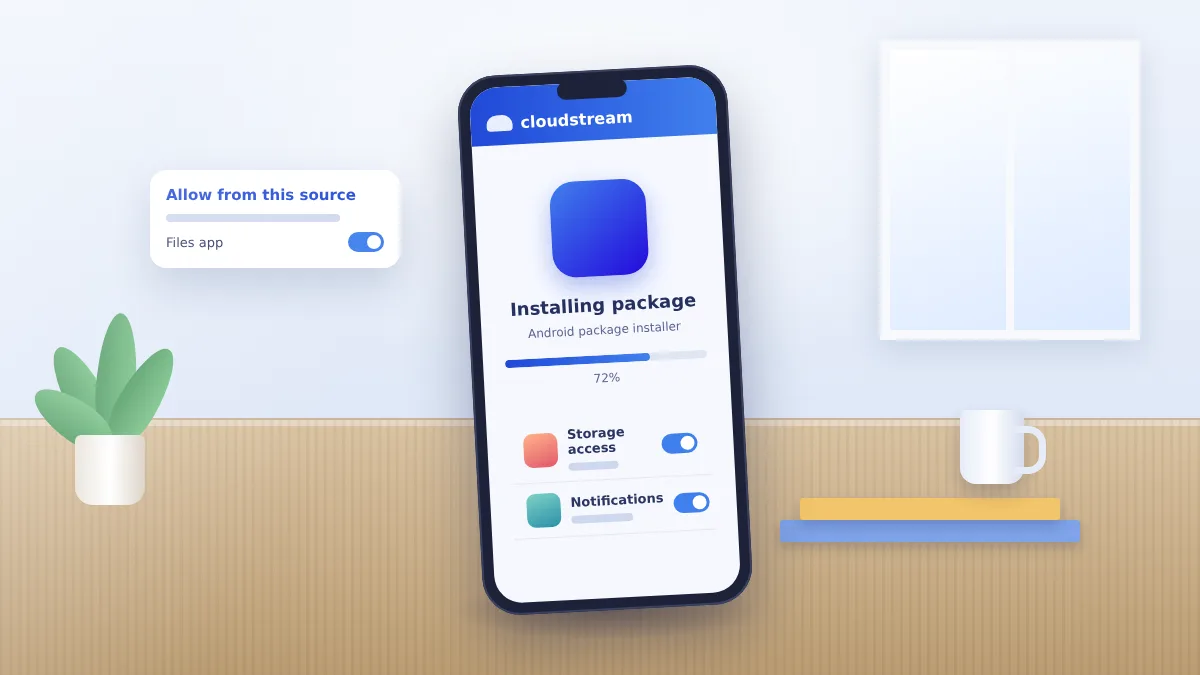
cloudstream is one of the most capable open-source media centres available for Android, yet many new users hesitate at the first hurdle: it is not listed on the Google Play Store. Installing an application from outside the store is entirely routine on Android, and once you understand the handful of steps involved, the process becomes quick and predictable. This guide explains every stage in detail, from preparing your device to confirming that the installation worked correctly.
By the end, you will have cloudstream running, understand why Android asks for certain permissions, and know how to add your first repository so that the application has something to show.
Why cloudstream Is Installed Outside the Play Store
cloudstream is developed in public on GitHub and published by its maintainers through the project's own channels. Distributing outside the Play Store gives the developers freedom to release updates on their own schedule and to keep the application free of the commercial requirements that accompany store listings. It also means that you, rather than a store, decide when and where the software comes from.
Android supports this model through a feature usually described as installing unknown apps. The word "unknown" simply means "not from the Play Store"; it does not imply that the software is unsafe. What matters is that you obtain the package from a trustworthy source, which in this case is the official cloudstream GitHub organisation.
Before You Begin: Preparing Your Device
A few minutes of preparation prevents most installation problems. Work through the following checks before you obtain the package.
- Android version: cloudstream requires Android 5.0 or later. You can confirm your version under Settings, then About phone, then Software information.
- Free storage: keep at least 500 MB available. The application itself is modest in size, but plugins, artwork caches and downloads need room to grow.
- Stable connection: use Wi-Fi where possible so the package downloads completely and is not corrupted by an interrupted mobile connection.
- Battery level: make sure your device has adequate charge, particularly on older phones where installation can take a little longer.
If you previously installed a modified or unofficial build from another website, remove it first. Packages signed by different developers cannot update one another, and Android will refuse to install the official version over an unofficial one.
Step 1: Obtain the Official Package
Always begin with the official source. The download section on the cloudstream homepage links directly to the project's GitHub repository, which is maintained by the developers themselves. Avoid mirror sites that repackage the application, as you cannot verify what has been changed.
The GitHub repository contains the full project. Android-ready packages are published by the maintainers alongside the source, and the project's releases area lists stable and pre-release builds. Stable builds suit most people; pre-release builds include the newest features but may contain minor issues that are still being refined.
Step 2: Allow Installation from Your Chosen App
Modern versions of Android grant the right to install packages on a per-app basis. In other words, you allow a specific app, such as Chrome or your file manager, to install software, rather than switching on a single system-wide setting.
- Open the package file once it has finished downloading.
- Android displays a notice explaining that, for your security, this source is not yet allowed to install apps.
- Select Settings in that notice, then enable Allow from this source.
- Return to the previous screen to continue the installation.
On Android 7 and earlier, the setting appears instead under Settings, then Security, as Unknown sources. Enable it, complete the installation, and consider disabling it again afterwards. On newer versions, you may likewise revoke the permission from your browser once cloudstream is installed; updates delivered through cloudstream itself will request permission separately.
Step 3: Complete the Installation
With the source permitted, Android shows a summary screen for cloudstream. Confirm the installation and wait a few seconds while the package installer verifies and copies the files. When it finishes, you can open the application immediately or find it later in your app drawer.
Occasionally Google Play Protect displays a message saying that it does not recognise the developer. This is a standard notice for software distributed outside the store. Provided you obtained the package from the official repository, you can choose to install anyway. If you have any doubt about where a file came from, delete it and download a fresh copy from the official source.
Step 4: First Launch and Permissions
On first launch, cloudstream may ask for permission to send notifications, which it uses to report download progress and available updates. On older Android versions it may also ask for storage access so that downloaded media can be saved in a folder you can reach with a file manager. Granting these permissions is optional, but declining them limits the related features.
You will also notice that the home screen is empty. This is expected. cloudstream deliberately ships without any content sources, which keeps the core application neutral and lightweight. Everything you watch comes from extensions that you add yourself.
Step 5: Add Your First Repository
A repository is a list of plugins hosted online. Adding one is straightforward:
- Open Settings from the navigation bar.
- Choose Extensions.
- Select Add repository and enter either the full repository URL or its shortcode.
- Confirm, then open the repository to view its plugins.
- Install the plugins you need; each one takes only a moment.
Return to the home screen and you will see content from the providers you selected. For a fuller explanation of how repositories, plugins and updates fit together, read cloudstream Repositories and Extensions Explained.
Verifying That Everything Works
Before settling in, spend a minute confirming that the installation is healthy. Open a title from your new plugin and start playback. If video begins promptly and the controls respond, the player is working. Open the search page and run a query to confirm that results appear from every active plugin. Finally, visit Settings and check that the version number is shown, which confirms the application installed fully.
If anything fails at this stage, the cause is usually a plugin rather than the application. Plugins depend on external services that change over time, so updating or reinstalling the plugin often resolves the issue. Our article on fixing common cloudstream errors covers these situations in depth.
Keeping cloudstream Up to Date
cloudstream can check for new versions automatically and notify you when one is available. Accepting the update downloads the new package and passes it to the Android installer, which replaces the old version while preserving your settings, library and extensions. You can also install a newer package manually over the existing application with the same result, provided both builds come from the official source.
Plugins are updated separately from the application. cloudstream checks for plugin updates when it starts, and you can trigger a check at any time from the Extensions screen. Keeping both the application and its plugins current is the single most effective way to avoid playback problems.
Installing on Tablets and Other Android Devices
The process described here applies equally to Android tablets, foldable phones and Chromebooks with Android app support. On large screens, cloudstream adapts its layout to show more artwork per row and places navigation along the side, making better use of the available space. If you intend to use cloudstream on a television, the steps differ slightly because TV devices lack a conventional browser; our guide to setting up cloudstream on Android TV and Fire TV explains the alternative methods.
Common Installation Messages and What They Mean
- "App not installed": usually caused by an existing build signed with a different key. Uninstall the old version and try again.
- "There was a problem parsing the package": the file is incomplete or corrupted. Delete it and download it again over a stable connection.
- "Installation blocked": the install-source permission has not been granted to the app you used to open the file.
- Insufficient storage: free space by clearing caches or removing unused applications, then retry.
Frequently Asked Questions
Do I need to root my phone to install cloudstream?
No. cloudstream installs on standard, unmodified Android devices. Rooting is neither required nor recommended.
Will installing from outside the Play Store void my warranty?
No. Installing applications from other sources is a supported Android feature and does not affect your device warranty.
Can I install cloudstream on more than one device?
Yes. There are no limits or accounts involved. Use the backup feature in Settings to copy your library and repositories between devices.
Conclusion
Installing cloudstream on Android involves only a few deliberate steps: obtain the official package, allow your chosen app to install it, confirm the installation and add a repository. Understanding why each step exists makes the process feel reassuring rather than unfamiliar. With the application in place, you are ready to explore its extensions, refine the player to your taste and extend your library to other screens.