 cloudstream
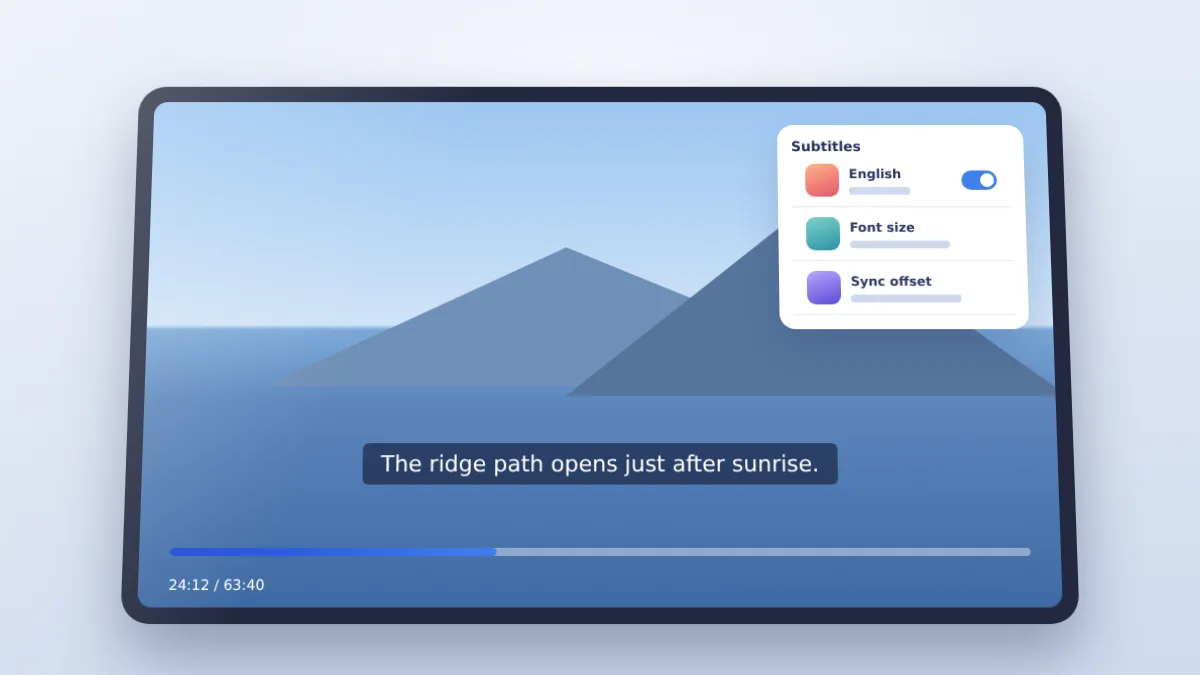
The video player is where you spend most of your time in cloudstream, and it is far more capable than its clean appearance suggests. Built on a mature Android media engine, it supports gesture controls, flexible resizing, multiple audio and subtitle tracks, adjustable playback speed and a thorough set of subtitle styling options. Learning these features turns ordinary viewing into a tailored, comfortable experience.
This guide explores the player in depth, from everyday controls to finer settings that most people never discover.
The Player Interface at a Glance
When playback begins, the controls appear briefly and then fade away. Bring them back by selecting anywhere on the video. Along the bottom you will find the progress bar, elapsed and remaining time, and the main playback controls. Along the top are the title and options for sources, subtitles, audio tracks and settings. A lock icon disables touch input, which is useful when watching in bed or handing a phone to a child.
Gesture Controls on Phones and Tablets
cloudstream supports intuitive gestures that make adjustments quick without opening menus:
- Brightness: swipe vertically on the left half of the screen.
- Volume: swipe vertically on the right half of the screen.
- Seeking: swipe horizontally across the video to move forwards or backwards precisely.
- Quick skip: two quick touches on the left or right side jump back or forward by a configurable interval, ten seconds by default.
- Zoom: pinch to zoom in or out of the picture.
Each gesture can be enabled or disabled in the player settings. If you find accidental adjustments distracting, switch off the ones you rarely use.
Choosing Quality and Sources
Many plugins offer several sources or quality levels for the same title. The sources menu lists them, often with their resolution. cloudstream can select automatically according to your preferences, which you set in Settings under the player section:
- Preferred quality on Wi-Fi: for example 1080p or 4K.
- Preferred quality on mobile data: a lower setting such as 480p conserves your allowance.
- Source priority: rank sources so your favourites are chosen first.
If a source buffers or fails, open the sources menu and choose another. Switching source keeps your position in the video.
Playback Speed and Resize Modes
Playback speed can be adjusted from 0.25 times to 2 times normal speed. Slower speeds are useful for following detailed tutorials or language learning, while faster speeds help with lectures and long-form talks. Audio pitch is corrected automatically, so voices remain natural.
Resize modes control how the picture fits the screen. Fit shows the whole frame with black bars where necessary. Fill stretches the picture to the screen, which can distort proportions. Zoom crops the edges to fill the screen without distortion. On modern phones with tall displays, Zoom often gives the most immersive result.
Audio Tracks
When a source contains more than one audio track, for instance different languages or a commentary, the audio menu lists them. Select the one you prefer; the change takes effect immediately. You can also set a preferred audio language in Settings so cloudstream chooses it automatically when available.
Subtitles: Selection and Search
Subtitles can come from three places. Some sources include embedded subtitle tracks. Plugins may supply separate subtitle files. And cloudstream can search online subtitle databases, such as OpenSubtitles, directly from the player. Open the subtitles menu to see every available option, grouped by language.
If you already have a subtitle file on your device, in SRT, VTT or ASS format for example, choose the option to load a file and select it from storage. This is invaluable for less common languages or fan-made translations.
Styling Subtitles for Comfort
Readable subtitles make an enormous difference to enjoyment, and cloudstream offers fine control over their appearance. In Settings, open the subtitle section to adjust:
- Font: choose from several typefaces, or import your own font file.
- Size: scale text up for televisions and down for small phones.
- Colour and outline: white text with a dark outline is legible on almost any scene.
- Background: a semi-transparent box behind the text helps on very bright footage.
- Elevation: raise subtitles away from the bottom edge so they do not overlap the controls or on-screen text.
A live preview shows your changes as you make them, so you can experiment freely.
Fixing Subtitle Timing
Occasionally subtitles appear slightly before or after the dialogue, particularly when a file was created for a different edition of a film. The player's subtitle menu includes a sync offset. Increase it if subtitles appear too early, or decrease it if they appear too late. Adjustments are made in small increments, so watch a line of dialogue, adjust, and repeat until speech and text align. The offset applies only to the current video, leaving other titles unaffected.
Picture-in-Picture and Background Playback
On Android 8 and later, leaving the player while a video is running can shrink it into a floating picture-in-picture window. You can move the window around the screen and continue using other applications. For audio-only content such as audiobooks, background playback keeps sound running when the screen is off. Both behaviours can be configured in the player settings.
Skipping Intros and Resuming Playback
cloudstream remembers where you stopped in every title and offers to resume from that point. For series, it can also show a convenient option to skip opening sequences when timing data is available, and it moves to the next episode automatically when one finishes. These small conveniences add up during long viewing sessions.
Player Settings on Television Devices
On Android TV and Fire TV, the same features are available through the remote. Directional keys seek and reveal menus, and the centre key pauses. Larger subtitle sizes are advisable when viewing from a distance. For full guidance on the television setup, see Setting Up cloudstream on Android TV and Fire TV, and for sending video from your phone to a television, see Casting cloudstream to Your TV with Chromecast.
Saving Mobile Data During Playback
Video is the most data-intensive activity on a phone, so a few player settings are worth reviewing if you often watch away from Wi-Fi. Set a separate, lower preferred quality for mobile data; 480p uses roughly a third of the data required for 1080p and still looks clear on a phone screen. Reduce the buffer size on mobile connections so the player does not prefetch more video than you are likely to watch.
For longer journeys, downloading over Wi-Fi beforehand is the most economical approach of all. Our guide to offline viewing with cloudstream downloads explains how to prepare titles in advance.
Accessibility Considerations
cloudstream's subtitle controls also serve accessibility needs. Large, high-contrast subtitles with a solid background assist viewers with low vision, while a preferred subtitle language that loads automatically benefits viewers who are deaf or hard of hearing. The player's controls are large and clearly labelled, and on television devices every function can be reached with the directional keys alone. Android's own accessibility features, such as system-wide font scaling and caption preferences, work alongside cloudstream's settings rather than replacing them.
If a family member relies on particular settings, consider creating a backup once everything is configured, so the same preferences can be restored quickly on any device they use.
Frequently Asked Questions
Why are there no subtitles for some titles?
The source may not include any. Use the online subtitle search in the player or load a file you already have.
Can I make cloudstream remember my subtitle language?
Yes. Set a preferred subtitle language in Settings, and cloudstream selects it automatically whenever it is available.
Why does video stutter at high quality?
Your connection or device may not sustain that bitrate. Lower the quality or choose another source. The guide to fixing common cloudstream errors covers buffering in more depth.
Conclusion
The cloudstream player rewards a little exploration. Gestures make everyday adjustments effortless, quality preferences adapt playback to your connection, and comprehensive subtitle controls ensure every line is clear and correctly timed. Spend ten minutes configuring these options once, and cloudstream will deliver a consistently comfortable experience on every device you use. To prepare content for journeys without a connection, continue with Offline Viewing with cloudstream Downloads.