 cloudstream
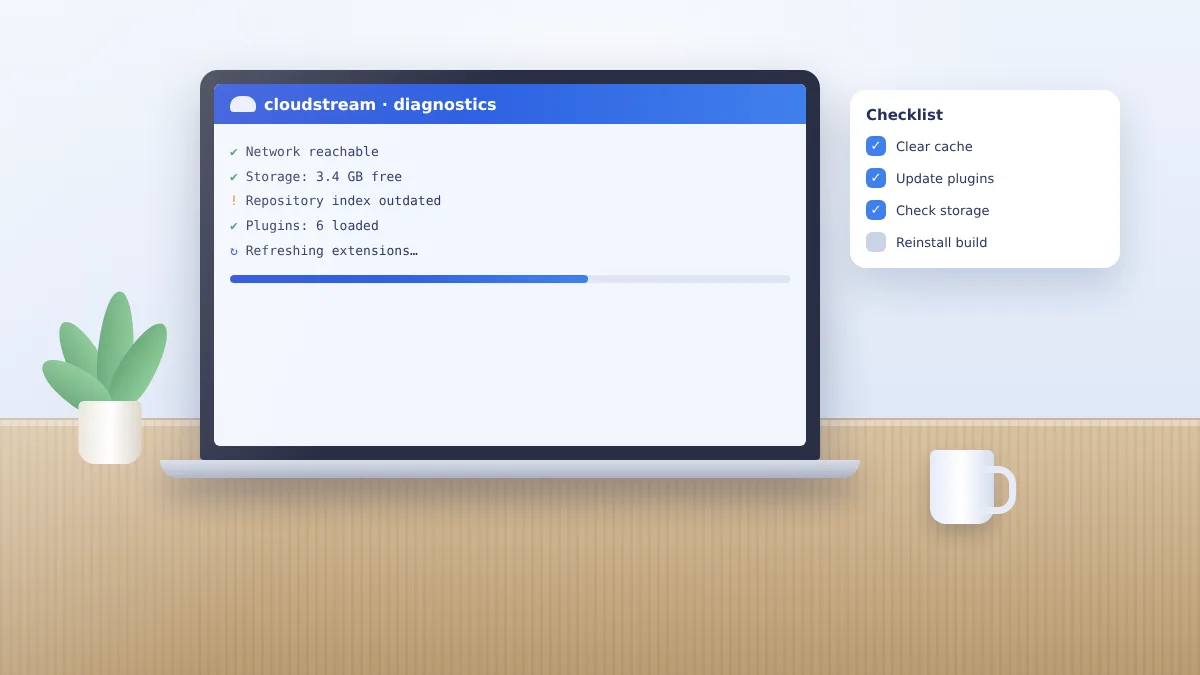
cloudstream is generally dependable, but because it relies on plugins that connect to external services, occasional problems are inevitable. The good news is that nearly every issue falls into a small number of categories, each with a clear solution. Approaching problems methodically, rather than reinstalling everything at the first sign of trouble, saves time and preserves your settings.
This guide groups common errors by symptom and explains the cause and remedy for each.
A General Diagnostic Sequence
Before examining specific errors, it helps to know the sequence that resolves most problems. Work through these steps in order, testing after each one:
- Restart cloudstream: close it fully from the recent apps screen and reopen it.
- Update plugins: open Settings, then Extensions, and check for updates.
- Try another source: in the player, open the sources menu and select an alternative.
- Clear the cache: use the option in Settings to clear cached data and images.
- Update cloudstream: install the latest build from the official source.
- Restart the device: a full restart clears network and memory issues.
Only if none of these steps help should you consider reinstalling, and even then you should create a backup first.
The Home Screen Is Empty
This is the most frequent question from new users, and it is not an error. cloudstream contains no built-in sources; content appears only after you add a repository and install plugins. Open Settings, then Extensions, add a repository, and install at least one plugin. Then return to the home screen and select a provider from the selector at the top. The guide cloudstream Repositories and Extensions Explained describes this process fully.
If you have plugins installed but the home screen remains empty, the selected provider may be unavailable. Choose a different provider from the home screen selector.
Search Returns No Results
- No active plugins: confirm that at least one plugin is installed and enabled.
- Language filters: if you have restricted providers to certain languages, results in other languages are hidden.
- Outdated plugin: the source may have changed its structure. Update the plugin.
- Spelling: some sources are strict about titles. Try the original title or fewer words.
Playback Errors and Sources That Will Not Load
Messages such as "Source error" or a video that never begins usually indicate a problem with the specific source rather than the application. Open the sources menu and choose a different link; this resolves most cases immediately. If every source fails for every title, check your internet connection and any VPN or DNS settings that might block access.
A persistent "No links found" message suggests the plugin needs updating. Visit the Extensions screen and update it, or remove and reinstall it to replace any corrupted files.
Buffering and Stuttering
Buffering occurs when video arrives more slowly than it is played. Address it as follows:
- Lower the quality: select a lower resolution in the sources menu or adjust the preferred quality in Settings.
- Change source: some servers are simply faster than others.
- Increase the buffer: in the player settings, a larger buffer smooths out brief network slowdowns, provided your device has enough memory.
- Improve the connection: move closer to the router, switch to 5 GHz Wi-Fi or use Ethernet on television devices.
- Hardware decoding: if stuttering persists despite a fast connection, try toggling hardware decoding in the player settings.
Installation and Update Failures
"App not installed"
This typically means an existing version is signed with a different key, for instance a modified build from an unofficial website. Back up your data, uninstall the existing version and install the official build. The guide How to Install cloudstream on Android covers the full process.
"There was a problem parsing the package"
The downloaded file is incomplete, or your Android version is too old. Download the file again over a stable connection and confirm that your device runs Android 5.0 or later.
Updates download but do not install
cloudstream needs permission to install unknown apps in order to apply its own updates. Grant this permission in Android settings under special app access.
cloudstream Crashes or Closes Unexpectedly
Crashes are uncommon and usually traceable to a single plugin or a corrupted cache. Clear the cache first. If crashes continue, disable recently installed plugins one at a time to identify the culprit. If the application crashes immediately on launch, clear its storage from Android settings; note that this removes your settings, so restore from a backup afterwards.
When a crash is reproducible, the project welcomes clear bug reports on its GitHub issue tracker. Include your device model, Android version, cloudstream version and precise steps that cause the crash.
Subtitles Missing or Out of Sync
If no subtitles appear, the source may not provide any; use the online subtitle search in the player or load a local file. If subtitles appear too early or too late, adjust the sync offset in the subtitle menu. Detailed instructions are in Mastering the cloudstream Player and Subtitles.
Downloads Stall or Fail
Stalled downloads are usually caused by battery optimisation stopping background work, insufficient storage or an expired source link. Exempt cloudstream from battery optimisation, free space, or cancel and restart the download to obtain a fresh link. See Offline Viewing with cloudstream Downloads for more detail.
Problems Specific to Television Devices
- Interface hard to navigate: switch to the TV layout in the interface settings.
- Playback stutters on older sticks: reduce the buffer size, lower default quality and disable unused plugins to conserve memory.
- Updates will not install: grant cloudstream permission to install unknown apps in developer or security settings.
Creating a Backup Before Major Changes
Before clearing storage or reinstalling, open Settings, then Backup, and create a backup file. It preserves your repositories, bookmarks and preferences. After reinstalling, restore the file to return to exactly where you were.
Network, VPN and DNS Considerations
Many problems that appear to be application errors are actually network issues. Some internet providers and public networks filter traffic or block particular addresses, which can prevent plugins from reaching their sources. If several unrelated plugins fail at the same time, test on a different network, such as mobile data instead of Wi-Fi, to see whether the behaviour changes.
Changing your device's private DNS setting to a reputable public resolver can resolve lookup failures caused by an unreliable provider. On Android 9 and later, this option is found under network settings as Private DNS. Conversely, if you already use a VPN or a custom DNS service, try disabling it temporarily, since some services block the addresses that sources rely on.
Corporate and school networks frequently restrict streaming altogether. In such cases the solution lies with the network administrator rather than with cloudstream.
Gathering Information for a Bug Report
When you have exhausted the usual remedies and believe you have found a genuine bug in the application, a careful report helps the developers resolve it quickly. Note the cloudstream version from Settings, your device model and Android version, and the exact sequence of actions that produces the problem. Mention whether it happens with every plugin or only one, and whether it began after a particular update. Screenshots or a short screen recording are often more informative than a lengthy description. Search existing issues first, since someone may already have reported the same behaviour, and add your details there instead of opening a duplicate.
Frequently Asked Questions
Why did a plugin that worked yesterday stop working today?
The external source has probably changed. Plugin authors typically publish fixes quickly; update the plugin or wait for a new release.
Will reinstalling delete my library?
Yes, unless you create a backup first. Always back up before uninstalling.
Where can I report a bug?
Application bugs belong on the official GitHub issue tracker. Plugin problems should be reported to the repository that publishes the plugin.
Conclusion
Most cloudstream problems stem from plugins, sources or network conditions rather than the application itself. Following a consistent sequence of updating plugins, trying alternative sources, clearing the cache and updating cloudstream resolves the great majority of issues without data loss. Keep a recent backup, and even the occasional reinstall becomes a minor inconvenience. For guidance on keeping your setup secure, read cloudstream Privacy and Safety: A Practical Guide.