 cloudstream
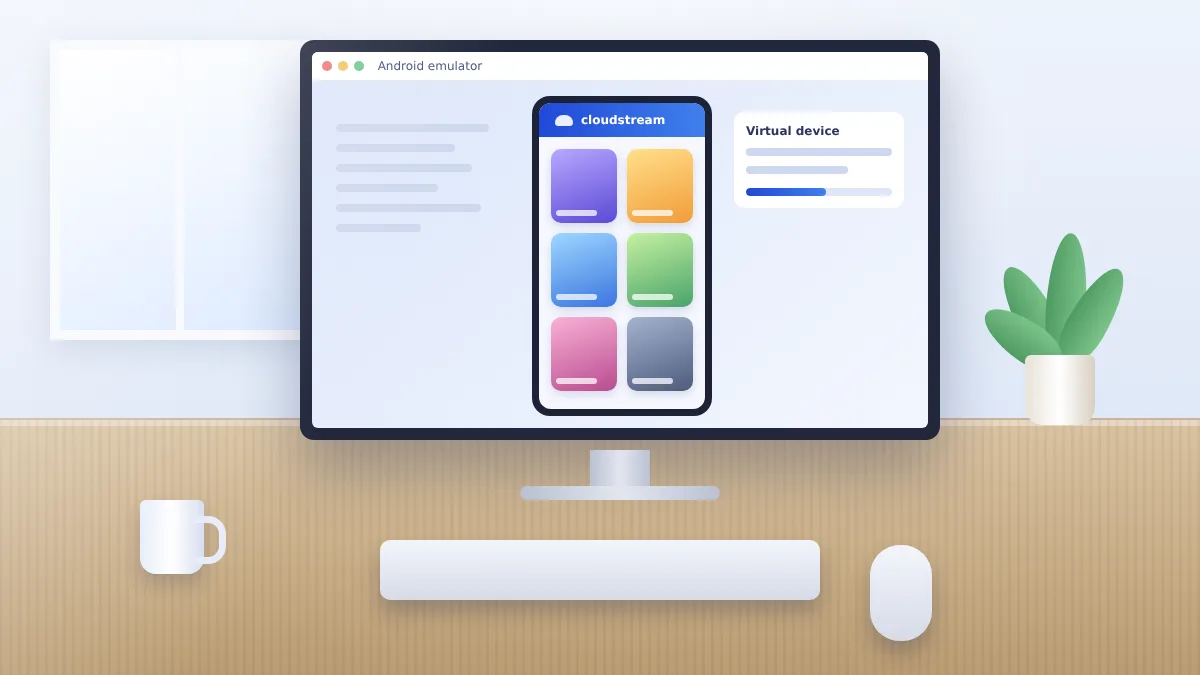
cloudstream is designed for Android, yet many people would like to enjoy it on a desktop or laptop computer, where a large monitor, a comfortable chair and a proper keyboard make browsing a substantial library more pleasant. Windows cannot run Android applications natively, but several well-established tools bridge the gap. With the right choice of software and a few settings adjusted, cloudstream runs on a PC almost as smoothly as it does on a phone.
This guide compares the available approaches, explains installation in detail and offers practical advice on performance and controls.
How Android Apps Run on Windows
An Android emulator creates a virtual Android device inside Windows. It has its own operating system, storage and settings, and appears as a window on your desktop. Applications installed inside it behave exactly as they would on a phone or tablet. Modern emulators use hardware virtualisation, a processor feature that lets the virtual device run efficiently, so performance on a reasonably recent computer is good.
The alternative is a virtualisation layer built into the operating system. Microsoft previously offered the Windows Subsystem for Android on Windows 11, but it has been discontinued, so for most people a dedicated emulator is now the dependable route.
Checking Your Computer
Before installing an emulator, confirm that your PC meets these requirements:
- Operating system: Windows 10 or Windows 11, 64-bit.
- Memory: 4 GB of RAM at minimum; 8 GB or more is strongly recommended.
- Storage: at least 5 GB free, preferably on a solid-state drive.
- Virtualisation: enabled in your computer's BIOS or UEFI settings.
- Graphics: up-to-date drivers from your graphics card manufacturer.
To check whether virtualisation is enabled, open Task Manager, select the Performance tab and look at the CPU section. If it reads "Virtualisation: Enabled", you are ready. If it is disabled, restart your computer, enter the firmware settings, usually by holding F2, F10 or Delete during start-up, and enable the option labelled Intel VT-x, Intel Virtualization Technology, AMD-V or SVM Mode.
Choosing an Emulator
| Emulator | Strengths | Considerations |
|---|---|---|
| BlueStacks | Polished, widely used, strong performance | Includes promotional content in its launcher |
| LDPlayer | Light on resources, quick to start | Primarily oriented towards games |
| MEmu | Good compatibility with older hardware | Interface feels less refined |
| Android Studio Emulator | Official Google tool, no extra software | More technical to configure |
For most people, BlueStacks offers the best balance of simplicity and performance. Developers or those who prefer a minimal environment may favour the official Android Studio emulator. Whichever you choose, download it from the developer's own website.
Installing cloudstream in BlueStacks
- Download and install BlueStacks from its official website, following the on-screen prompts.
- Launch BlueStacks and allow it to complete its first-time setup. You may skip signing in to a Google account, as cloudstream does not require one.
- Obtain the official cloudstream Android package on your PC. The download section on the homepage leads to the project's GitHub repository, where the maintainers publish their builds.
- Drag the package file from File Explorer into the BlueStacks window, or use the Install APK option in the side toolbar and select the file.
- Wait a few seconds; the cloudstream icon then appears on the BlueStacks home screen.
- Open cloudstream and add a repository through Settings, then Extensions, exactly as on a phone.
If you are new to repositories, cloudstream Repositories and Extensions Explained describes how they work.
Installing with the Android Studio Emulator
For those comfortable with technical tools, the official emulator offers a clean environment without additional software. Install Android Studio, open the Device Manager, create a virtual device with a recent system image that includes Google APIs, and start it. Once running, drag the cloudstream package onto the emulator window to install it. Alternatively, use the Android Debug Bridge from a command prompt with adb install followed by the path to the file.
Tuning Performance
Emulators share your computer's resources with Windows, so a little configuration makes a noticeable difference:
- Allocate resources: in the emulator's settings, assign four processor cores and 4 GB of memory if your PC has them to spare.
- Graphics renderer: try both DirectX and OpenGL; one usually performs better on a given graphics card.
- Display resolution: match the emulator's resolution to your monitor, such as 1920 by 1080, for crisp artwork and video.
- Frame rate: 60 frames per second provides smooth scrolling without wasting resources.
- Close background applications: heavy browser sessions or games running alongside the emulator can cause stutter.
Keyboard and Mouse Controls
cloudstream responds naturally to a mouse: selecting with the left mouse key opens items, and the scroll wheel moves through rows and lists. In the player, the space bar usually pauses and resumes, while the arrow keys seek. Most emulators also allow you to map keys to on-screen actions, which is helpful if you want a dedicated key for full-screen mode or subtitles.
For a television-style experience, switch cloudstream to its TV layout in the interface settings. This layout is designed for directional navigation and works well with the arrow keys.
Storage and Downloads on PC
Files downloaded within cloudstream are stored inside the emulator's virtual storage. Most emulators provide a shared folder that links virtual storage to a folder on your PC, allowing you to move downloaded media in or out. Check your emulator's settings for an option named "Media folder" or "Shared folder". For guidance on the download manager itself, see Offline Viewing with cloudstream Downloads.
Keeping Everything Updated
Update cloudstream inside the emulator in the same way as on a phone: accept the in-app update notice or install a newer package over the existing one. Keep the emulator itself updated as well, since new releases improve compatibility and performance. Graphics driver updates from your card manufacturer also frequently resolve playback glitches.
Troubleshooting on Windows
- Emulator will not start: virtualisation is usually disabled, or another hypervisor such as Hyper-V is conflicting. Check the emulator's documentation for compatibility settings.
- Video stutters: allocate more cores and memory, switch the graphics renderer, or lower the default playback quality.
- Black screen during playback: change the renderer, update graphics drivers, or select a different video source.
- No sound: confirm that Windows has the correct output device selected and that the emulator is not muted.
For problems specific to cloudstream rather than the emulator, consult Fixing Common cloudstream Errors.
Using a Second Monitor or Television
One advantage of running cloudstream on a computer is the flexibility of display output. If your PC is connected to a television by HDMI, you can move the emulator window to that screen and enlarge it to full screen, creating a capable home-theatre setup from equipment you already own. Switching cloudstream to its TV layout makes it comfortable to navigate from the sofa using a wireless keyboard or a small remote-style keypad.
When using a high-resolution display, set the emulator's resolution and pixel density to match. A 4K television benefits from a 3840 by 2160 resolution in the emulator, although this demands more from your graphics card. If playback becomes uneven, a 1920 by 1080 resolution with the emulator scaled to full screen often looks nearly as sharp while running more smoothly.
Laptop users should connect to mains power during long sessions, as many laptops reduce processor speed on battery, which can cause video to stutter inside the emulator.
Frequently Asked Questions
Is there a native Windows version of cloudstream?
The project's repository contains work towards desktop support, but the polished, supported experience today is the Android application running in an emulator.
Can I run cloudstream on a Mac or Linux?
Yes. Emulators such as BlueStacks for macOS, or Waydroid on Linux, run Android applications using the same principle described here.
Do I need a Google account in the emulator?
No. cloudstream does not rely on Google services, so you may skip sign-in entirely.
Conclusion
Running cloudstream on a Windows PC is straightforward once virtualisation is enabled and a suitable emulator is installed. BlueStacks provides the simplest path, while the Android Studio emulator suits those who want a minimal setup. With sensible resource allocation and the TV layout for keyboard navigation, cloudstream becomes a comfortable desktop media centre. To bring the same library to your living room, continue with Setting Up cloudstream on Android TV and Fire TV.