 cloudstream
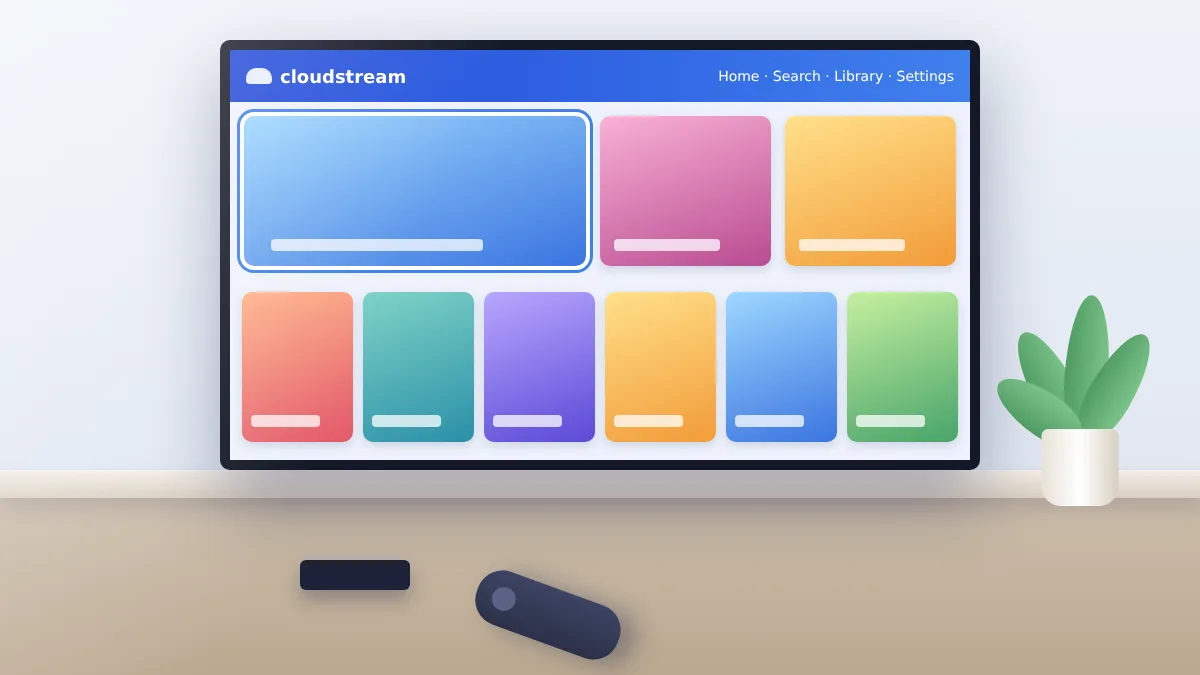
cloudstream is at its most enjoyable on a large screen. Its interface includes a dedicated television layout with oversized artwork, clear focus highlights and navigation designed entirely around a remote control. Installing it on a television device takes a little more effort than on a phone, mainly because TVs lack a conventional web browser, but the process is reliable once you know the method.
This guide covers Android TV and Google TV devices, including televisions with Android built in, as well as Amazon Fire TV sticks and cubes.
Understanding the Difference Between Android TV and Fire TV
Both platforms are based on Android, which is why cloudstream runs on them. Android TV and Google TV are Google's television editions of Android, found on Sony, TCL, Philips and Hisense televisions, as well as streaming boxes such as the Chromecast with Google TV and the NVIDIA Shield. Fire TV runs Fire OS, Amazon's adaptation of Android, on Fire TV sticks, cubes and some televisions.
Neither platform offers cloudstream in its built-in store, so on both you will sideload the package, meaning you install it directly from a file. The general principle is identical; only the menu names differ.
Preparing a Fire TV Device
Fire OS hides the setting that allows sideloading inside a developer menu. Enable it as follows:
- Open Settings, then My Fire TV.
- If Developer options is not listed, select About, highlight your device name and select it seven times. A message confirms that you are now a developer.
- Return to My Fire TV, open Developer options and enable Apps from unknown sources or, on newer models, Install unknown apps for the app you will use.
Preparing an Android TV or Google TV Device
- Open Settings, then System, then About.
- Select Android TV OS build seven times to unlock developer options.
- Go to Settings, then Apps, then Security & restrictions, and choose Unknown sources.
- Enable the permission for the app you will use to install cloudstream.
Menu names vary slightly between manufacturers, but the setting is always found under security or app permissions.
Method 1: Installing with the Downloader App
Downloader is a free utility available in both the Amazon Appstore and the Google Play Store for TV. It combines a simple browser with a file manager, making it the most popular way to sideload applications on televisions.
- Install Downloader from your device's app store.
- Grant it permission to install unknown apps, as described above.
- Open Downloader and enter the address of the official cloudstream package in the URL field.
- Allow the file to download completely; Downloader then opens the Android installer automatically.
- Confirm the installation and select Open, or find cloudstream later in your apps list.
- After installing, you may delete the package file from within Downloader to recover storage space.
Method 2: Sending the File from a Phone or Computer
If typing an address with a remote feels laborious, you can transfer the package from another device. File-sharing applications such as Send Files to TV work on both phones and televisions over your home network. Download the official package on your phone, send it to the television, then open it with a file manager on the TV to install. A USB flash drive works equally well on televisions with a USB port.
A further option for experienced users is the Android Debug Bridge. With network debugging enabled in developer options, a computer on the same network can install the package directly. This method is quick, but the first two are simpler for most people.
First Launch on a Television
cloudstream detects television hardware and switches to its TV layout automatically. If it does not, open Settings, then the interface section, and select the TV layout manually. In this mode, every element can be reached with the directional pad, and the currently focused item is clearly highlighted.
As on a phone, the home screen is empty until you add a repository. Entering URLs with a remote is slow, so use a repository shortcode where one exists. Better still, configure everything on your phone first, then transfer it as described in the next section. For background on how repositories work, read cloudstream Repositories and Extensions Explained.
Transferring Your Setup from a Phone
cloudstream's backup feature makes moving to a television effortless:
- On your phone, open Settings, then Backup, and create a backup file.
- Transfer the file to the television using a file-sharing application or USB drive.
- On the television, open cloudstream, go to Settings, then Backup, and choose Restore.
- Select the file. Your repositories, plugins, bookmarks and preferences are restored.
Optimising Playback on the Big Screen
Televisions benefit from a few adjustments that differ from phone settings:
- Preferred quality: set a default resolution that matches your television and connection, such as 1080p or 4K.
- Subtitle size: increase the subtitle scale so text remains legible from across the room.
- Buffer size: on devices with limited memory, a moderate buffer prevents stalls without exhausting RAM.
- Wired connection: where possible, connect the television by Ethernet, or use a Fire TV Ethernet adapter, for steadier high-resolution streams.
More detail on these options is available in Mastering the cloudstream Player and Subtitles.
Remote Control Tips
In the player, left and right on the directional pad seek backwards and forwards, while the centre key pauses and resumes. Holding a direction seeks more quickly. Selecting up or down reveals the control overlay, where you can change source, subtitles, audio track and playback speed. The back key closes overlays before leaving the player, so a single accidental selection will not end your viewing.
Keeping cloudstream Updated on a Television
cloudstream can notify you of updates on a television just as it does on a phone. When you accept, the update downloads and the Android installer opens; confirm with your remote. Because the installer requires permission to install unknown apps, make sure cloudstream itself has that permission. Plugins update automatically at start-up.
Alternative: Casting from Your Phone
If you prefer not to install anything on the television, cloudstream on your phone can cast to a Chromecast or Google TV device. This approach suits occasional big-screen viewing. Our guide to casting cloudstream with Chromecast explains how it works and when it is the better choice.
Organising the TV Home Screen
A television is often shared by several people, so a tidy home screen makes cloudstream easier for everyone. Use the provider selector at the top of the home screen to choose which source appears by default, and disable plugins that nobody uses so they no longer appear in search. Bookmarks marked as Watching appear prominently, which lets each viewer return to their current series quickly.
On Fire TV and Google TV, you can also move cloudstream to the front of the launcher's application row. Doing so places it alongside your other streaming services, saving several steps each time you sit down to watch.
Finally, consider the memory available on your device. Entry-level sticks typically have between one and two gigabytes of RAM. Closing other applications before a long viewing session and keeping the number of active plugins modest helps cloudstream remain responsive throughout.
Frequently Asked Questions
Does cloudstream work on older Fire TV sticks?
Generally yes, provided the device runs a supported version of Fire OS. Older sticks with limited memory benefit from a smaller buffer and fewer active plugins.
Can I use a Bluetooth keyboard with cloudstream on TV?
Yes. A keyboard makes entering repository addresses and search terms much quicker.
Will cloudstream appear on my Fire TV home screen?
It appears in Your Apps & Channels. You can move it to the front row for quicker access.
Conclusion
Installing cloudstream on Android TV or Fire TV requires enabling developer options and sideloading the package, most easily through the Downloader app. Once installed, the dedicated TV layout delivers a comfortable, remote-friendly experience, and the backup feature lets you carry your entire setup over from your phone. With a few playback adjustments, cloudstream becomes a polished centrepiece for your living room. If you are still choosing a device, you may also find Running cloudstream on a Windows PC useful.