 cloudstream
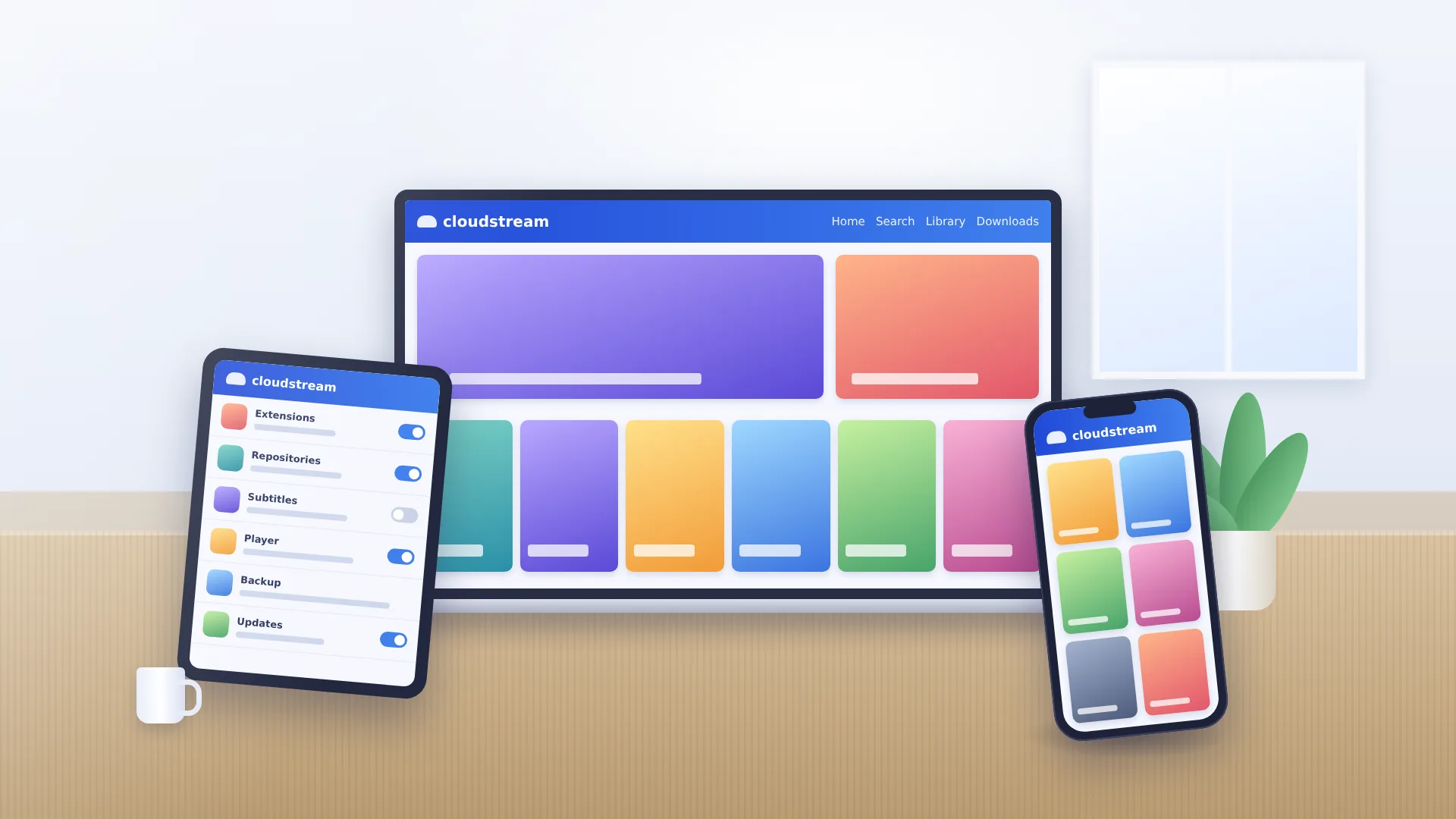
cloudstream Media Centre for Android and TV
cloudstream is a free, open-source media centre that brings films, series, audiobooks and live channels together through extensions you choose. It runs without ads or tracking on phones, tablets and Android TV, and keeps your library tidy across every screen.
What Is cloudstream?
cloudstream is an extension-based media centre and multimedia player for Android. Rather than shipping with a fixed catalogue, it provides a polished interface, a capable video player and a library system, then lets you decide where content comes from by installing plugins. This design keeps the core application small, transparent and adaptable.
The project is developed in the open on GitHub, where its Kotlin source code, issue tracker and translation work are publicly available. Thousands of developers follow the repository, and contributors from around the world maintain translations through Weblate, so the interface is available in dozens of languages.
Because cloudstream separates the player from its sources, the same application can serve as an audiobook shelf with LibriVox, a window onto public IPTV channels, a lightweight front end for video platforms, or a home for your own media servers.
Key Features of cloudstream
cloudstream combines a refined interface with practical tools that make everyday viewing simpler. These are the capabilities that set it apart.
Ad-free experience
No banners, pop-ups or sponsored placements interrupt your viewing at any point.
Extension system
Add repositories and plugins to shape exactly which sources appear in your library.
Offline downloads
A built-in manager saves supported titles to local storage for travel and weak connections.
Chromecast support
Send playback to a television with a single selection from the player controls.
Subtitles and tracks
Load subtitle files, adjust style and timing, and switch audio tracks with ease.
Bookmarks and history
Track what you are watching, resume where you stopped and organise your favourites.
How cloudstream Extensions and Repositories Work
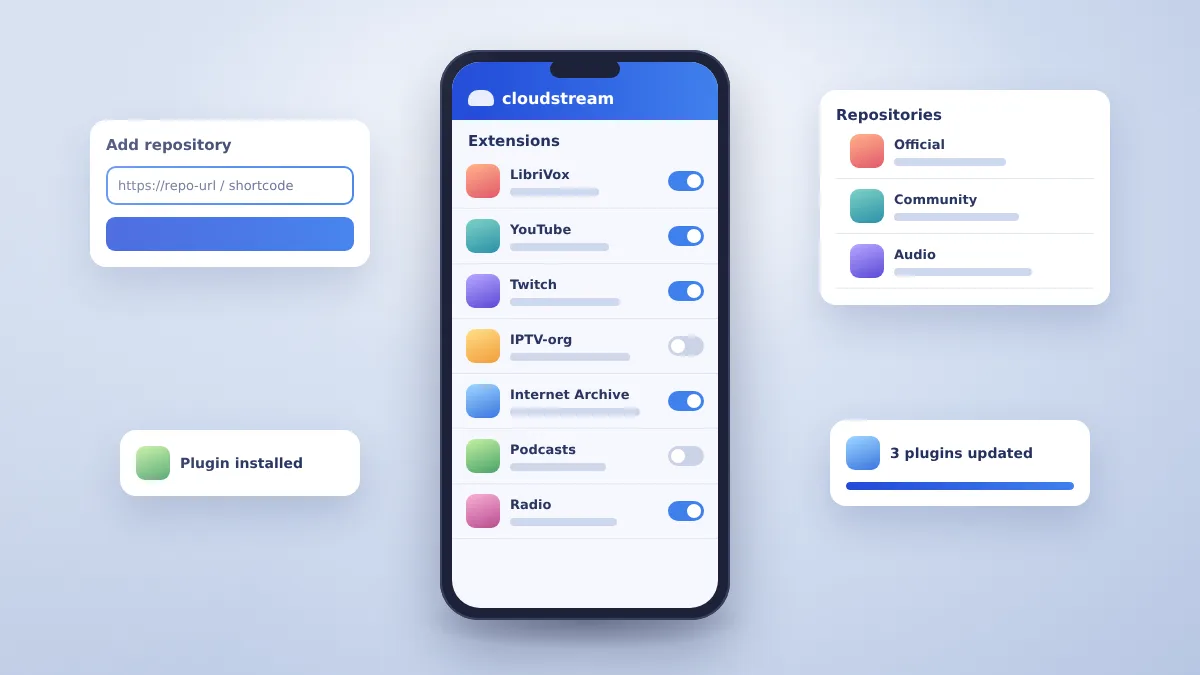
Extensions are the heart of cloudstream. A repository is a list of plugins hosted online, and each plugin connects the application to one source. You add a repository once, then install, update or remove its plugins whenever you wish.
- Open the extension settingsGo to Settings and choose Extensions to view your installed repositories.
- Add a repositoryEnter the repository URL or its shortcode, then confirm to load the list of available plugins.
- Install the plugins you needSelect individual plugins; they download in seconds and appear on your home screen straight away.
- Keep everything currentcloudstream checks for plugin updates automatically, so your sources stay compatible.
Because each plugin is a separate, small module, a problem with one source never affects the others. If a provider changes its website, only that plugin needs an update, while the rest of your library continues to work normally. This modular design is also what allows cloudstream to stay lightweight: you carry only the plugins you actually use.
How to Install cloudstream on Android
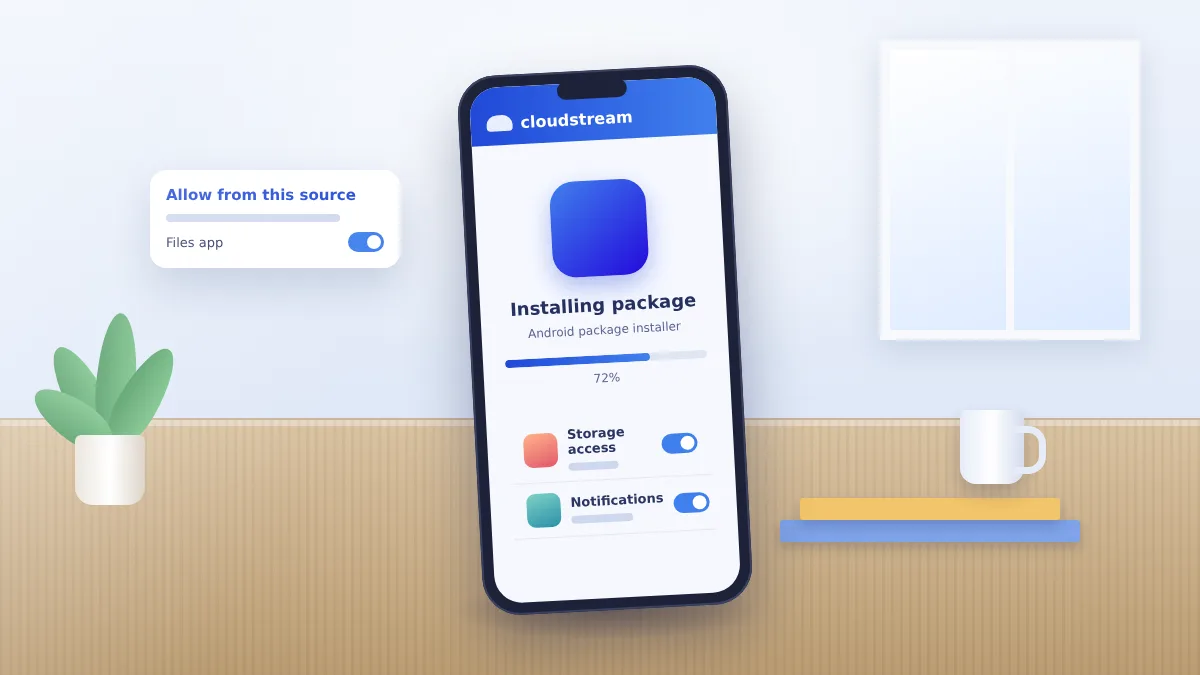
Because cloudstream is distributed outside the Play Store, Android asks for one extra permission during installation. The whole process takes less than two minutes.
- Obtain the packageUse the download section on this page to get the official cloudstream package from GitHub.
- Allow the installation sourceWhen prompted, permit your browser or file manager to install unknown apps.
- Open the fileFind the package in your Downloads folder and confirm the installation.
- Launch and add a repositoryOpen cloudstream, visit Settings, then Extensions, and add your first repository.
Using cloudstream Every Day
Once your first plugins are installed, these habits will help you get the most from cloudstream in daily use.
- Search across sources: the search page queries every active plugin at once, then groups results by provider.
- Build your library: mark titles as Watching, Planned, On Hold or Completed to keep your progress organised.
- Link a tracker: connect AniList, MyAnimeList or Simkl to synchronise progress with services you already use.
- Tune the player: set default quality, playback speed, resize mode and subtitle style once, and cloudstream remembers them.
- Create a backup: export your settings and bookmarks periodically so moving to a new device is effortless.
For detailed walkthroughs of each of these areas, the cloudstream guide covers installation, extensions, devices and troubleshooting step by step.
It is also worth exploring the interface settings early on. cloudstream offers several colour themes, adjustable poster sizes and a choice between phone, tablet and TV layouts, so you can shape the application around the device and the way you browse.
Download cloudstream
Get the latest cloudstream package directly from the project's official GitHub repository. The archive contains the complete master branch, published and maintained by the cloudstream developers.
Download cloudstreamUsing cloudstream Across Your Devices
One application adapts to the screen in front of you. The interface reorganises itself for touch, remote control or mouse, so the experience feels native everywhere.
Phones and tablets
Gesture controls adjust brightness, volume and seeking, while picture-in-picture keeps playback visible as you multitask.
Android TV and Fire TV
A dedicated TV layout supports remote navigation, large artwork and clear focus states for comfortable viewing from the sofa.
Windows computers
Through an Android emulator, cloudstream runs in a resizable window with keyboard and mouse support on a larger display.
Fixing Common cloudstream Errors
Before examining specific errors, work through these steps in order, testing after each one:
- Restart cloudstreamClose it fully from the recent apps screen and reopen it.
- Update pluginsOpen Settings, then Extensions, and check for updates.
- Try another sourceIn the player, open the sources menu and select an alternative.
- Clear the cacheUse the option in Settings to clear cached data and images.
- Update cloudstreamInstall the latest build from the official source.
- Restart the deviceA full restart clears network and memory issues.
Only if none of these steps help should you consider reinstalling, and even then you should create a backup first. Read the troubleshooting guide for more detail.
cloudstream System Requirements
cloudstream is lightweight and runs well on modest hardware. The table below summarises what each platform needs for a comfortable experience.
| Platform | Minimum | Recommended |
|---|---|---|
| Android phone or tablet | Android 5.0, 2 GB RAM | Android 9 or later, 4 GB RAM |
| Android TV / Google TV | Android TV 5.0 | Android TV 10 or later |
| Amazon Fire TV | Fire OS 5 | Fire TV Stick 4K or newer |
| Windows PC | Windows 10, 4 GB RAM, emulator | Windows 11, 8 GB RAM, virtualisation on |
| Storage | 200 MB free | 500 MB plus space for downloads |
| Connection | 5 Mbps for HD streams | 25 Mbps for 4K playback |
Is cloudstream Safe to Use?
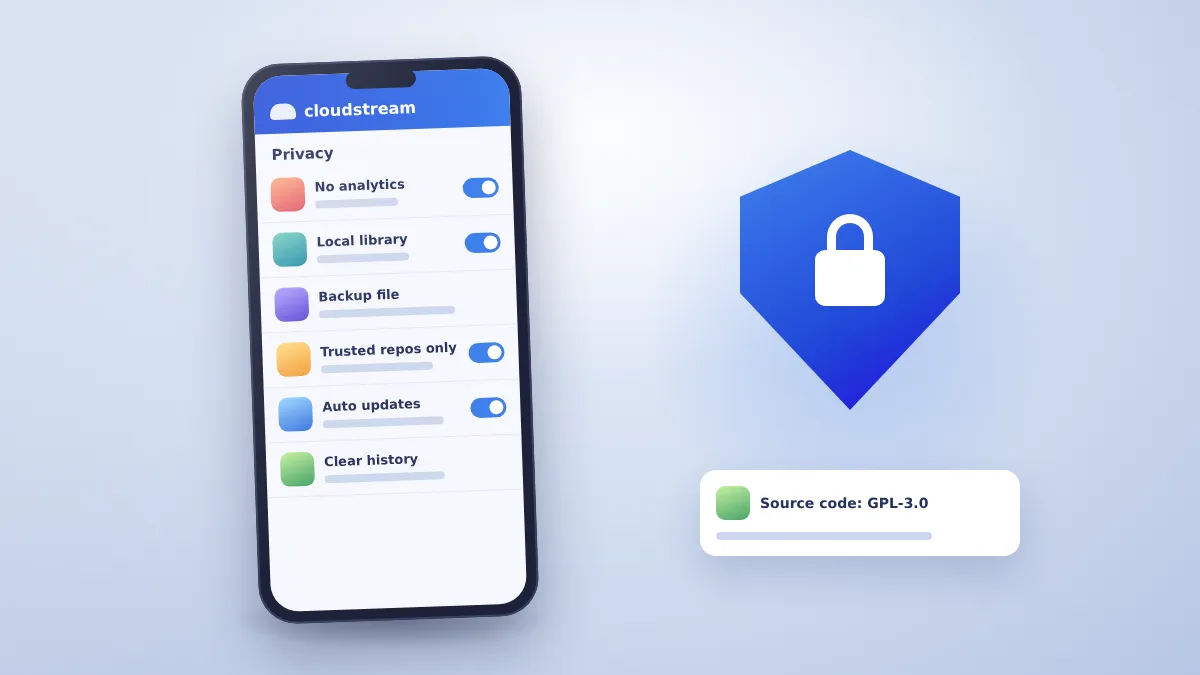
The core cloudstream application is open source under GPL-3.0, which means anyone can inspect exactly what the code does. The project contains no analytics or advertising libraries, and your library data stays on your device by default.
Safety, however, also depends on the extensions you choose. Plugins are written by third parties and run inside the application, so treat a new repository with the same care you would give any software. Prefer well-known repositories, keep plugins updated and remove any you no longer use.
Finally, always obtain cloudstream itself from the official GitHub organisation. Modified builds from unknown websites are the most common source of problems, and they lose the transparency that makes the project trustworthy.
cloudstream Pros and Cons
No application suits every viewer. This summary will help you decide whether cloudstream fits the way you watch.
Strengths
- Free and open source with no advertising
- Highly flexible through repositories and plugins
- Works on phones, tablets, Android TV and Fire TV
- Downloads, Chromecast and subtitle tools built in
- Active community and frequent updates
Limitations
- Shows no content until extensions are added
- Not listed on the Google Play Store
- Plugin quality varies between repositories
- Windows use requires an Android emulator
- Some sources may change and need plugin updates
cloudstream Frequently Asked Questions
Answers to the questions new cloudstream users ask most often.
Yes. cloudstream is released under the GPL-3.0 licence, so the application, its source code and every official update are free. There are no subscriptions, in-app purchases or premium tiers.
cloudstream ships without any content sources. Open Settings, choose Extensions, add a repository by URL or shortcode, and install at least one plugin. Your home screen fills with results as soon as a plugin is active.
No. The project is distributed through its official GitHub organisation rather than the Play Store, which is why Android asks you to allow installation from the app you use to open the package.
cloudstream runs on Android 5.0 (Lollipop) and newer. For smooth playback, a device with at least 2 GB of RAM and 500 MB of free storage is recommended.
Yes. The interface includes a layout designed for remote-control navigation, and the same package installs on Android TV boxes, Google TV devices and Amazon Fire TV sticks.
cloudstream is built for Android, but it runs comfortably on Windows through an Android emulator such as BlueStacks or through Android virtualisation tools that support sideloaded packages.
No. The application contains no advertising frameworks, banners or pop-ups. Any content you see comes solely from the extensions you decide to install.
The project states that it includes no tracking or analytics. Your library, bookmarks and watch history are stored locally on your device unless you choose to link an external tracking service.
The download is the official master-branch package from the cloudstream GitHub repository. It contains the complete, current source of the project, published by its maintainers.
Yes, where an extension supports it. cloudstream includes a built-in download manager that saves episodes and films to local storage so you can watch them without a connection.
Yes. When a compatible Chromecast or Google TV device is on the same network, the cast icon appears in the player and playback moves to the larger screen.
cloudstream can notify you when a new build is available. You can also install a newer package over the existing one; your settings, library and extensions are preserved.
Extensions are written by third parties, and the core project does not moderate them. Install repositories only from sources you trust, and avoid any extension that offers copyrighted media without permission.
Yes. Settings include a backup option that exports your bookmarks, settings and repository list to a file, which you can restore on the same device or a new one.