 cloudstream
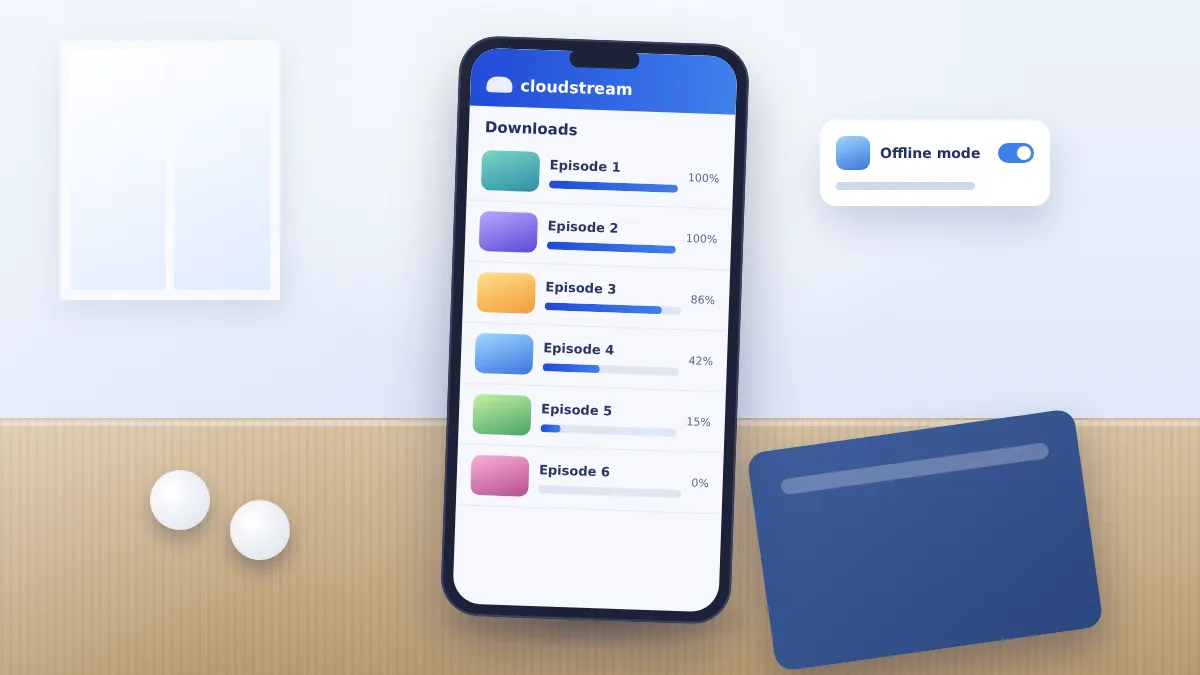
A reliable internet connection is not always available. Long flights, train journeys through rural areas, hotel networks and monthly data limits can all interrupt streaming. cloudstream addresses this with a built-in download manager that saves supported titles to your device, ready to watch anywhere. Used thoughtfully, it transforms cloudstream into a portable library that works as well offline as online.
This guide explains how downloads work, how to configure storage, and how to keep your device from filling up.
How Downloads Work in cloudstream
When you start a download, cloudstream retrieves the video from the source supplied by the plugin and writes it to local storage. Once complete, the file plays in the same cloudstream player, with the same subtitle and audio options, but without needing a connection. Your progress is tracked exactly as it is for streamed titles.
Whether a particular title can be downloaded depends on the plugin and source. Most sources that provide direct video files support downloading; some live or adaptive streams do not. When downloading is available, a download icon appears beside the episode or film.
Starting a Download
- Open the title you would like to save.
- For a series, find the episode in the list; for a film, open its detail page.
- Select the download icon. If several sources or qualities are offered, choose one.
- The download begins and a notification shows its progress.
For series, you can also select multiple episodes or an entire season at once by holding an episode to enter selection mode, which queues them in order. This is the quickest way to prepare for a long journey.
Managing the Downloads Screen
The Downloads section, available from the main navigation, lists everything you have saved or are currently saving. Each entry shows its size, progress and status. From here you can pause, resume or cancel active downloads, play finished files and delete those you have watched. A summary at the top shows how much storage your downloads occupy compared with the space remaining on your device.
Choosing Where Files Are Stored
By default, cloudstream saves downloads to its own folder in internal storage. In Settings, under the downloads section, you can choose a different location, including a microSD card on devices that have one. Storing large video files on a memory card frees internal space for applications and system updates.
When selecting a folder, Android asks you to grant cloudstream access to it. This permission is limited to the folder you choose, which keeps the rest of your storage private. If you later move or rename that folder, return to Settings and select it again.
Selecting the Right Quality
Download quality has a large effect on file size. As a rough guide, one hour of video occupies approximately:
| Quality | Approximate size per hour | Best suited to |
|---|---|---|
| 480p | 300 to 500 MB | Small phones, limited storage |
| 720p | 600 MB to 1 GB | Most phones and tablets |
| 1080p | 1.5 to 3 GB | Large tablets, laptops via emulator |
| 4K | 7 GB and above | Television viewing only |
For viewing on a phone screen, 720p is usually indistinguishable from higher resolutions while using a fraction of the space. Reserve 1080p for tablets and larger displays.
Parallel Downloads and Network Settings
cloudstream can download several files simultaneously. More parallel downloads finish a batch sooner on a fast connection, but on a slower one they compete for bandwidth and may all progress slowly. Two or three parallel downloads strike a sensible balance for most home connections.
To protect your mobile data allowance, enable the option that restricts downloads to Wi-Fi. Queued downloads then wait until you join a wireless network, which is ideal when preparing for a trip the evening before.
Watching Offline
Open the Downloads screen and select any finished item to play it. Subtitles that were available when you downloaded the title remain accessible; external subtitle files stored on your device can also be loaded as usual. For guidance on subtitle styling and timing, see Mastering the cloudstream Player and Subtitles.
Before travelling, it is worth opening one downloaded file with aeroplane mode enabled. This confirms that the file is complete and playable, so there are no surprises once you are offline.
Keeping Storage Under Control
Downloads accumulate quickly. A few habits keep your device tidy:
- Delete episodes as soon as you have finished them; the Downloads screen allows you to remove several at once.
- Review the storage summary weekly and remove anything you no longer intend to watch.
- Clear the image cache in Settings occasionally; artwork for large libraries can occupy hundreds of megabytes.
- Store downloads on a memory card where available.
When a Download Stalls or Fails
Downloads occasionally pause or fail, usually for one of the following reasons:
- Interrupted connection: resume the download once the connection returns; cloudstream continues from where it stopped where the source permits.
- Battery optimisation: some manufacturers aggressively stop background tasks. Exempt cloudstream from battery optimisation in Android settings.
- Insufficient storage: free space or choose a different storage location.
- Expired source link: some sources issue links that expire. Cancel and restart the download to obtain a fresh link.
The article on fixing common cloudstream errors contains further diagnostic steps.
Respecting Content Rights
Downloading is a convenience for content you are entitled to keep, such as public-domain films and audiobooks, material published under open licences or files from your own media server. Avoid downloading copyrighted material from sources that do not have the right to distribute it. The cloudstream project encourages the same approach, and our guide to cloudstream privacy and safety discusses choosing reputable sources.
Planning Downloads for a Journey
A little planning ensures that your library is ready before you lose connection. The evening before travelling, connect to Wi-Fi and queue the episodes or films you intend to watch, allowing a little more than you expect to need. Leave the device charging while the downloads complete, and check the Downloads screen in the morning to confirm that every item finished successfully.
Consider the length of your journey and the storage available. A long-haul flight of twelve hours might accommodate six to eight hours of viewing; at 720p, that requires roughly five to eight gigabytes. If space is limited, mix video with audiobooks, which occupy a small fraction of the storage for the same listening time.
Remember to download subtitles as well. If you rely on online subtitle searches, load the subtitles you need while you are still connected, or keep subtitle files on your device so they remain available offline.
Downloads on Tablets and Shared Devices
Tablets are particularly well suited to offline viewing, thanks to their larger screens and, often, larger batteries. On a family tablet, the Downloads screen offers a simple way to prepare a selection of suitable programmes for children before a journey, so nobody needs to browse online while travelling. Combine this with the player's lock feature to prevent accidental changes during playback.
On shared devices, it is courteous to remove finished downloads promptly, ensuring storage remains available for everyone who uses the device.
Audiobooks and Audio Content Offline
Downloads are not limited to video. Audiobook plugins, such as those providing public-domain works from LibriVox, can save entire books for offline listening. With background playback enabled, you can listen with the screen switched off, preserving battery life on long walks or commutes. Audio files are small, so even a modest phone can carry a substantial collection.
Frequently Asked Questions
Do downloaded files expire?
No. Files remain on your device until you delete them.
Can I play cloudstream downloads in another video player?
Generally yes. Downloads are saved as standard video files, so other players can open them from the storage folder.
Are downloads included in backups?
No. Backups contain settings, bookmarks and repositories, not media files, which keeps them small.
Conclusion
The cloudstream download manager makes offline viewing simple and dependable. Choose a sensible quality, store files on a memory card where possible, restrict downloads to Wi-Fi and tidy your library regularly. With a little planning, you can carry hours of entertainment and listening wherever you go, without relying on a connection. For enjoying your library on a larger screen at home, read Casting cloudstream to Your TV with Chromecast.