 cloudstream
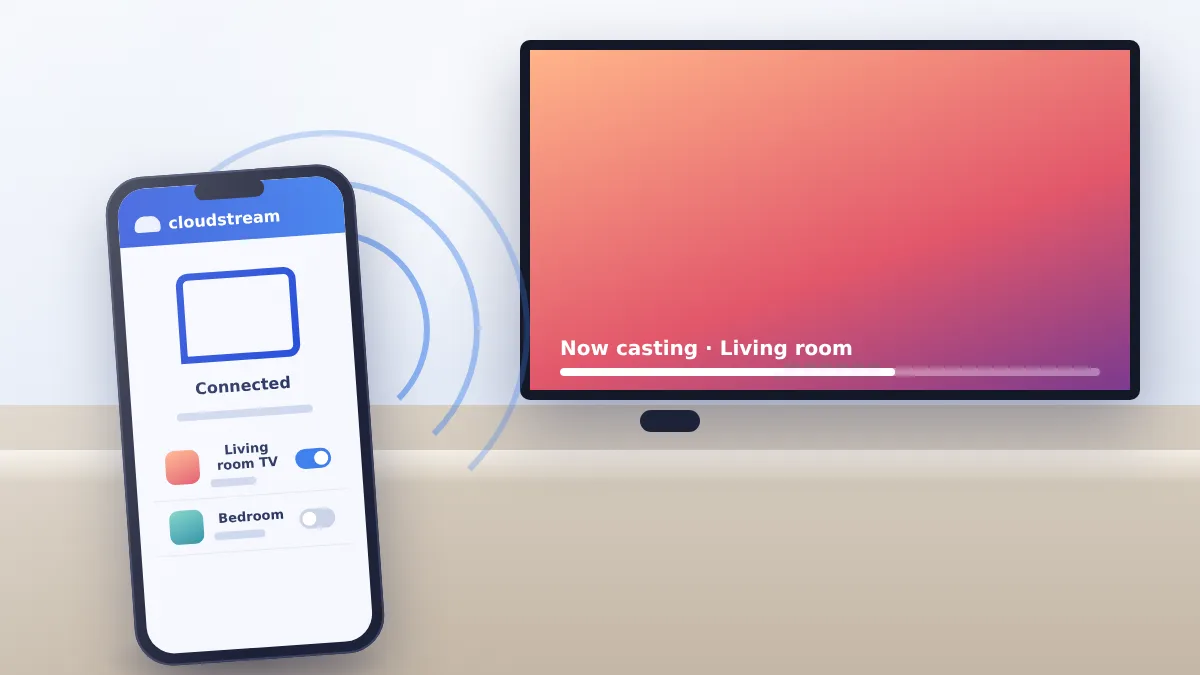
Sometimes you discover something worth watching on your phone and want to see it on the television without installing anything on the TV itself. cloudstream includes built-in support for Google Cast, the technology behind Chromecast, which lets you send playback from your phone to a compatible television in a moment. Your phone becomes the remote control, while the television handles the video.
This guide explains how casting works, how to set it up and how to resolve the most common problems.
What Casting Actually Does
When you cast, your phone does not stream the video to the television. Instead, it tells the Chromecast which video to play, and the Chromecast fetches the stream directly from the source. This has two important benefits. First, video quality depends on the Chromecast's connection rather than your phone's. Second, your phone remains free; you can lock it, answer messages or browse other applications while the video continues on the television.
Compatible Devices
Casting from cloudstream works with any device that supports Google Cast, including:
- Chromecast and Chromecast Ultra dongles.
- Chromecast with Google TV and Google TV Streamer.
- Televisions with Chromecast built in, from manufacturers such as Sony, Philips, TCL, Hisense and Toshiba.
- Android TV devices, which include Google Cast support as standard.
- Some smart speakers and displays for audio content such as audiobooks.
Amazon Fire TV devices do not support Google Cast. For Fire TV, install cloudstream directly as described in Setting Up cloudstream on Android TV and Fire TV.
Preparing Your Network
Casting depends on your phone and television discovering one another on the local network. Before casting, confirm that:
- Your phone and your Chromecast are connected to the same Wi-Fi network. Many routers broadcast separate 2.4 GHz and 5 GHz networks; both devices should use the same one.
- Your phone is not connected to a VPN that routes local traffic away from your home network, as this prevents discovery.
- Your router does not have client isolation or AP isolation enabled. This setting, common on guest networks, stops devices from seeing each other.
- The Chromecast is switched on and has been set up through the Google Home application.
Casting from cloudstream Step by Step
- Open cloudstream on your phone and start playing a title.
- Bring up the player controls. When a Cast device is available on your network, the cast icon appears in the top bar.
- Select the cast icon and choose your television from the list.
- After a brief connection, playback moves to the television, continuing from the same position.
You can also start casting before playback. Once connected, any title you open plays directly on the television.
Controlling Playback While Casting
While casting, cloudstream shows a control screen on your phone with the title, artwork and a progress bar. From here you can pause, resume, seek and adjust the television's volume. A persistent notification and lock-screen controls let you manage playback without unlocking your phone. To stop casting, select the cast icon again and choose to disconnect; playback can then continue on your phone if you wish.
Subtitles and Audio While Casting
Subtitles work while casting, though the options are slightly more limited than in the phone player, because the Chromecast renders them itself. Select subtitles from the cast control screen before or during playback. Text size and colour are governed partly by the Chromecast's own caption settings, which you can adjust in the Google Home application under device settings.
If a source provides several audio tracks, you can usually choose between them from the same control screen. For broader guidance on subtitle preferences, see Mastering the cloudstream Player and Subtitles.
Source Compatibility
Because the Chromecast fetches video itself, a small number of sources that play perfectly on the phone may not cast successfully. This happens when a source requires particular request headers or tokens that the Chromecast cannot provide. If casting fails for one source but works for others, choose a different source from the sources menu before casting. Plugin authors sometimes add casting support in later updates, so keeping plugins current helps; see cloudstream Repositories and Extensions Explained.
Improving Casting Quality
- Position the router well: Chromecast dongles behind televisions often receive weak signals. An HDMI extender, usually supplied in the box, moves the dongle away from the television's metal body.
- Use 5 GHz Wi-Fi: where the Chromecast is near the router, 5 GHz provides higher throughput for HD and 4K streams.
- Use Ethernet for Google TV: Chromecast with Google TV accepts an Ethernet adapter for the most stable connection.
- Restart occasionally: unplugging the Chromecast for ten seconds resolves many intermittent issues.
Troubleshooting Casting Problems
The cast icon does not appear
The phone cannot see the Chromecast. Confirm both are on the same network, disable any VPN, and check that client isolation is turned off. Restarting the router, the Chromecast and the phone, in that order, frequently resolves discovery issues.
Casting connects but playback never starts
The selected source may not support casting. Disconnect, choose another source, and cast again.
Video buffers on the television
The Chromecast's connection is struggling. Improve its Wi-Fi signal or select a lower quality source.
Casting stops when the phone screen locks
Some manufacturers restrict background activity aggressively. Exempt cloudstream from battery optimisation in Android settings so the cast session remains active.
For issues not related to casting, consult Fixing Common cloudstream Errors.
Casting Versus Installing on the TV
Casting is ideal for occasional big-screen viewing and for households where several people share one television but use their own phones. Installing cloudstream directly on an Android TV device offers a more complete experience, with the full player feature set, remote control navigation and no dependence on a phone. Many people use both: a dedicated installation on the main television and casting for a second screen elsewhere in the home.
Casting Audio Content
Casting is not limited to video. Audiobooks and other audio content from cloudstream plugins can be sent to Google Cast speakers, smart displays and televisions. This is a pleasant way to listen to a public-domain audiobook through better speakers while cooking, working or relaxing. Playback controls remain available on your phone and on the lock screen, so you can pause or skip without unlocking the device.
Speaker groups created in the Google Home application also appear as cast destinations, allowing audio to play in several rooms at once.
Guest Networks and Shared Homes
In shared houses, offices and hotels, networks are often configured to keep devices separated for security. This prevents casting, because your phone cannot discover the Chromecast. Where you control the router, place both devices on the main network rather than a guest network. Where you do not, some Chromecast models support a guest mode that pairs using a short PIN instead of network discovery, although availability varies by model and software version.
When travelling with a Chromecast, a portable travel router can create a private network to which both your phone and the Chromecast connect. This avoids the restrictions of hotel networks entirely and provides a consistent casting experience wherever you stay.
Battery and Performance Considerations
Because the Chromecast fetches the stream itself, casting places very little load on your phone. Battery use is mainly limited to keeping the cast session and notification active, so a phone can manage several hours of casting comfortably. If your phone restricts background activity, exempting cloudstream from battery optimisation keeps the session stable without noticeably affecting battery life.
Frequently Asked Questions
Does casting use my mobile data?
No, provided your phone is connected to Wi-Fi. The Chromecast fetches video over your home network.
Can I cast downloaded files?
Casting is designed for online sources. To watch downloaded files on a television, install cloudstream on the TV device instead.
Does casting reduce video quality?
No. The Chromecast receives the stream directly, so quality depends on the source and the Chromecast's connection.
Conclusion
Casting brings cloudstream to the television with almost no setup. Keep your phone and Chromecast on the same network, choose a cast-compatible source and control everything from your phone while the television does the work. With a well-placed Chromecast and a sound Wi-Fi signal, casting delivers smooth, high-quality playback for the whole household.